


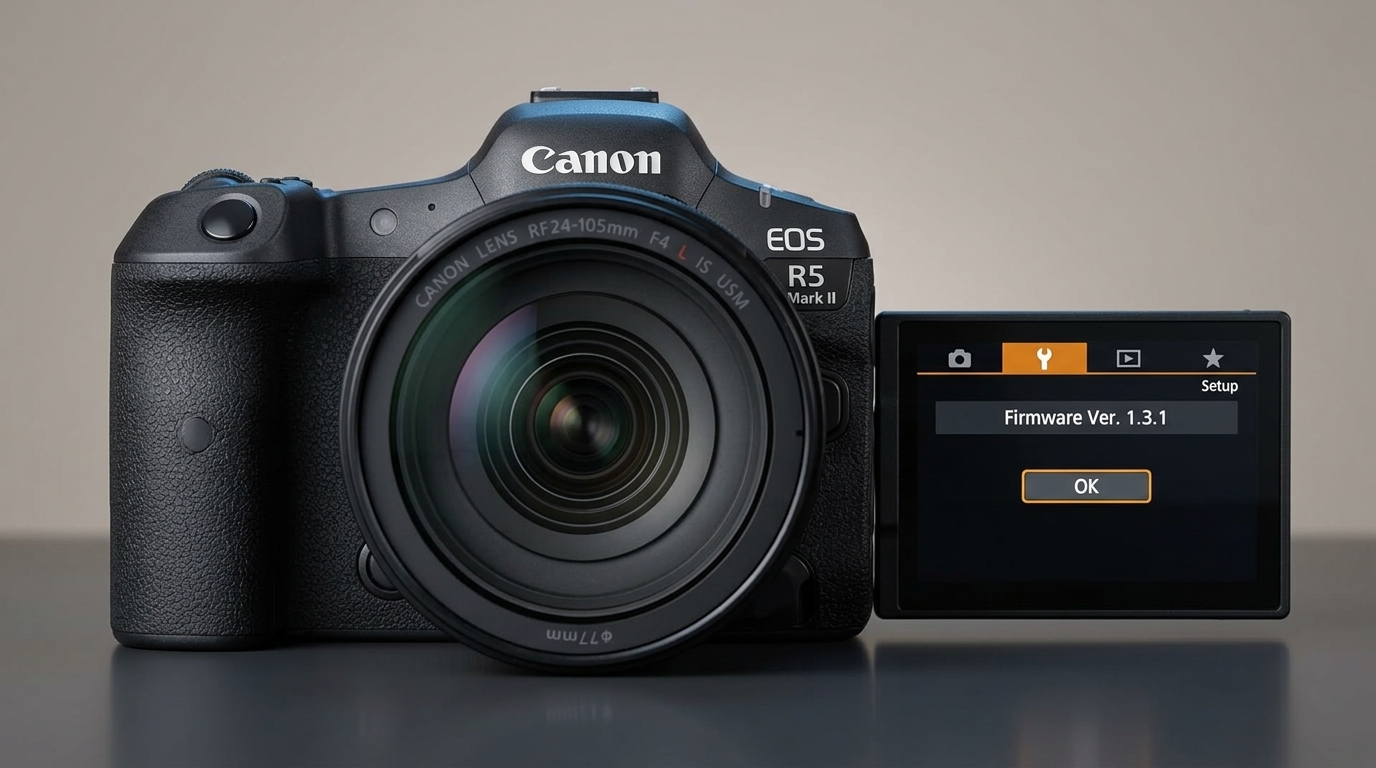
Quick Facts:
- Update: Canon EOS R5 Mark II firmware v1.3.1
- Released: June 2026
- Main fix: Touch & Drag AF malfunction with Whole Area AF
- Builds on: v1.3.0, which added 15 new features
- File source: Canon official support site
- Install time: A few minutes
- Update method: SD or CFexpress card, in-camera
- Best for: Every R5 Mark II owner, especially action and event shooters
7 min read
In This Guide
Canon R5 Mark II Firmware Update v1.3.1: What You Need to Know
The Canon R5 Mark II firmware update v1.3.1 arrived in June 2026, and it fixes one frustrating bug. Weeks earlier, the v1.3.0 release sometimes froze the camera controls during touch-and-drag focusing, forcing a battery pull mid-shoot. Because the fault hit a single autofocus feature, it spared most shooters. However, action and event photographers felt it directly.
If you already installed v1.3.0, then v1.3.1 is a small but worthwhile patch. However, if you skipped v1.3.0, this single download delivers more. It bundles the 15 feature additions from the earlier release with the new bug fix. Either way, the update keeps your Canon EOS R5 Mark II running cleanly.
This guide covers three things in order. First, you will see exactly what v1.3.1 repairs. Next, you will get a clear recap of every feature v1.3.0 introduced. Finally, you will find step-by-step install instructions plus a firmware FAQ. For deeper background on the body itself, read our Canon EOS R5 Mark II review.
What Firmware v1.3.1 Fixes
Firmware v1.3.1 corrects a single defect. According to Canon, the camera might malfunction during Touch & Drag AF with the AF area set to Whole Area AF. In practice, the original v1.3.0 release sometimes locked up the controls. Several owners reported needing a battery pull to recover.
Touch & Drag AF lets you move the focus point with your thumb on the rear screen. Your eye stays at the viewfinder the whole time. Sports, wildlife, and event shooters lean on this feature heavily. A freeze mid-shoot meant missed frames. Therefore, the patch matters most to anyone shooting fast action this way.
For everyone else, the risk was low. Still, every owner benefits from installing it, because it removes the fault entirely. After installing v1.3.1, the focusing method works normally again with Whole Area AF selected. To sharpen your focusing habits, the back-button focusing technique pairs well with the camera’s tracking modes.
Key Firmware Changes at a Glance
Here is a summary of the firmware timeline. It shows what each version delivers and where v1.3.1 fits.
| Detail | Information |
|---|---|
| Latest version | v1.3.1 |
| Release date | June 2026 |
| v1.3.1 change | Autofocus bug fix |
| v1.3.0 changes | 15 new features, 5 bug fixes |
| v1.3.0 release | About three weeks earlier |
| Update method | In-camera via memory card |
| File source | Canon official support site |
What the v1.3.0 Firmware Added
The v1.3.0 release was the substantial one. It added 15 features alongside several bug fixes. Below is the full feature list. The v1.3.1 download carries all of it forward for anyone updating from an older version.
On the autofocus side, Canon improved tracking and detection for Register People Priority in tough conditions. The list includes profile views, blurred or hidden faces, small subjects, and children, even when the setting is off. Moreover, the update added American football to the Action Priority sports list. It optimizes detection for players in helmets and shoulder pads.
For video shooters, v1.3.0 introduced close-up demo AF during movie recording. It works across manual, auto exposure, and other Creative Zone modes. In addition, the release brought an electronic level and a grid display during movie recording. It also added False Color settings while HDR or C.Log View Assist is active. The new tools help run-and-gun and studio operators frame and expose precisely.
Connectivity and workflow saw upgrades too. Canon added a Wi-Fi frequency band choice between 5 GHz and 2.4 GHz. It also added a connection-count option for FTP transfers. Another setting shows playback and menu screens when outputting to two HDMI displays. The release brought DPRAW shooting support and the EDSDK/CCAPI software development kit. To see how firmware shaped this body against its predecessor, read our R5 vs R5 Mark II comparison.
Standout Features Worth Using
Not every change carries equal weight. Here are the v1.3.0 additions most shooters will use day to day. Each one solves a real workflow problem rather than padding a changelog.
First, you now store up to four color temperature values in White Balance. You also assign Switch Color Temperature to a custom button. As a result, mixed-lighting shooters jump between presets without diving into menus. Second, Canon added Pre-continuous Shooting to the customizable buttons. You arm pre-capture with a single press, so you never miss the frame before fully pressing the shutter.
Third, the update lets you save and load AF-related settings to a card. You then transfer them between two R5 Mark II bodies. Photographers who run a pair of cameras copy their tuned AF setup in seconds. Nobody reprograms each body by hand anymore. To track the R5 Mark II latest firmware over time, bookmark our coverage, including a previous R5 II firmware update.
How to Update Canon R5 Mark II Firmware
Knowing how to update Canon R5 Mark II firmware takes the worry out of the process. The in-camera method uses a memory card. It works the same whether you load files from a computer or update directly. Follow these steps in order.
Before you start, charge the battery to full or attach the AC adapter. A power loss mid-update risks bricking the camera, so this step is not optional. Next, prepare a card you have formatted in the R5 Mark II. If you rely on registered subject data, save it to a card first, since the update clears it.
- Check your current version. Open the menu, go to the wrench (setup) tab, and select Firmware. The screen shows your installed number, so you confirm whether you need v1.3.1.
- Download the firmware file from Canon’s official support page for the EOS R5 Mark II. Always use the Canon source for any firmware download.
- Copy the unzipped firmware file to the root folder of a formatted card. Then insert the card into the camera.
- Return to the Firmware menu item and select it. Next, the camera detects the file and asks you to confirm.
- Confirm the update and wait. Do not open the card door, press buttons, or power off during the process.
- The camera restarts when the update finishes. Verify the new version reads 1.3.1 in the Firmware menu.
The whole process runs only a few minutes. Afterward, your menu settings and custom buttons remain intact. However, an update clears registered subject data, so confirm your backup beforehand.
Is the Canon R5 Mark II Firmware Update Safe to Install?
The Canon R5 Mark II firmware update v1.3.1 is safe to install. It removes the autofocus problem from the earlier release. Because this version fixes rather than introduces a defect, the upgrade carries lower risk than v1.3.0 did at launch.
The main safety rule applies to every firmware update on any camera: keep the power stable. A full battery or AC adapter, plus a freshly formatted card, prevents nearly every failure scenario. Therefore, owners who follow the steps above rarely run into trouble.
If you waited on v1.3.0 because of the autofocus reports, install v1.3.1 now. It delivers the full feature set and the fix in one pass. For shoppers still deciding on a body, read our guide to the best Canon cameras in 2026. It puts the R5 Mark II in context.
Frequently Asked Questions
What does Canon R5 Mark II firmware 1.3.1 fix?
Firmware 1.3.1 fixes a single bug. The camera might malfunction during Touch & Drag AF with the AF area set to Whole Area AF. After the update, the focusing combination works normally again.
Do I need to install 1.3.0 before 1.3.1?
No. The v1.3.1 firmware download includes everything from v1.3.0. A single update brings your camera fully current. You install one file regardless of your starting version.
How do I check my current firmware version?
Open the menu, scroll to the wrench (setup) tab, and select Firmware. Then the screen displays your installed version number. If it reads below 1.3.1, then the new update applies to you.
Where do I download the firmware?
Download the R5 Mark II latest firmware only from Canon’s official support page for the camera. Avoid third-party file mirrors, since an altered firmware download risks damaging the body.
Will updating erase my camera settings?
Mostly no. The update preserves your menu settings and custom button assignments. However, it clears registered subject and people data, so back it up to a card beforehand.
How long does the firmware update take?
The install runs only a few minutes from confirmation to restart. Keep the battery full and avoid touching controls until the camera reboots on its own.

