


Quick Facts:
- Update: Firmware version 1.10
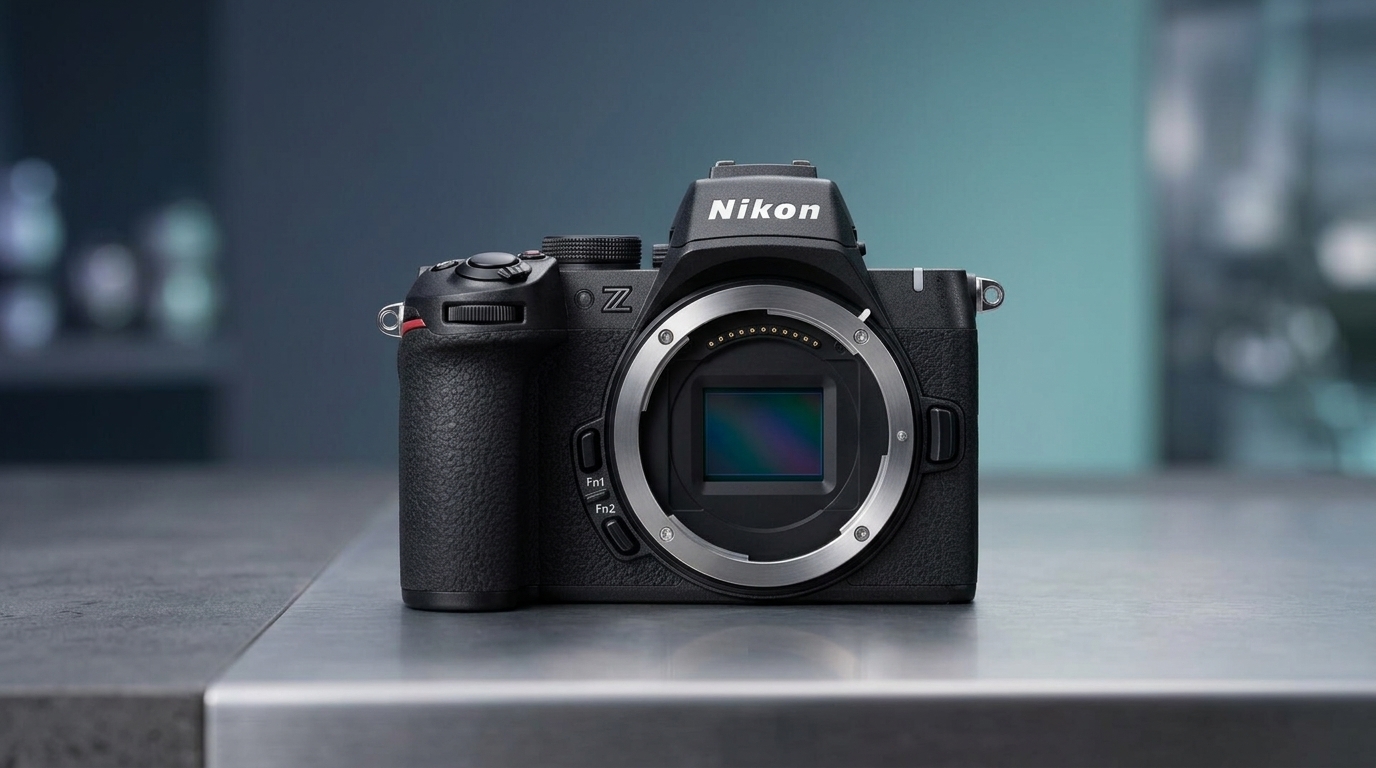
- Camera: Nikon Z50II
- Released: July 6, 2026
- Headline change: Manual aperture in shutter-priority (S) video
- Menu rename: Cloud Picture Control becomes Imaging Recipe
- Cost: Free
- Install time: About 10 minutes
- Best for: Z50II hybrid shooters and vloggers
5 min read
In This Article
- Nikon Z50II Firmware Update 1.10 Overview
- Every Change in Firmware Version 1.10
- Manual Aperture in Shutter-Priority Video
- Cloud Picture Control Becomes Imaging Recipe
- New Setup and Network Menu Options
- Firmware 1.10 vs the Launch Firmware
- How to Install the Nikon Z50II Firmware Update
- Final Thoughts
- Frequently Asked Questions
Nikon Z50II Firmware Update 1.10 Overview
The Nikon Z50II firmware update, version 1.10, arrived on July 6, 2026, and it hands video shooters a control they wanted. Nikon built the release around one practical gain for hybrid users, then layered in menu renames and network tweaks. If you own the camera, the download is free and takes about 10 minutes. Below, you get every change explained in plain language, plus a step-by-step install guide.
This release targets owners who shoot both stills and video. For a full breakdown of the body itself, see our Nikon Z50II review. The Z50II launched at $909 body-only in late 2024. Since then, Nikon raised prices across several products, so B&H now lists the body near $1,007. The firmware, however, costs nothing and applies to every Z50II regardless of purchase date.
Most coverage reprints the changelog line by line. Instead, this guide explains why each change matters at the moment you press record or open a menu. Videographers gain the most here. Stills shooters get smaller quality-of-life updates, though the menu renames touch everyone who uses Nikon Imaging Cloud.
Every Change in Firmware Version 1.10
The Nikon Z50II firmware update touches five menu areas. Here is the complete list of what firmware version 1.10 adds or changes, grouped by area so you know where to look.
| Menu Area | What Changed |
|---|---|
| Stills and Video | Cloud Picture Control renamed to Imaging Recipe; Add Cloud Picture Control files renamed to Download Imaging Recipes |
| Controls | Save focus position gains a new On saving user settings option |
| Displays | Automatic monitor display switch added to the Setup Menu |
| Network | Wi-Fi Always ON added for smart-device AP mode; Inactive connection timeout added for FTP |
| Video | Manual aperture allowed in S mode; HDMI output no longer cuts when recording ends |
Manual Aperture in Shutter-Priority Video
The headline change sits in S mode. Before version 1.10, the Z50II locked aperture during video capture in shutter-priority. The camera chose the f-stop and ISO for you, so depth of field shifted on its own. Now you set the aperture by hand while the camera holds your chosen shutter speed.
Why does this matter? Depth of field controls how much of your scene stays sharp. When the camera picks aperture automatically, your background blur shifts mid-clip, often at the worst moment. With manual control, you lock the look you want and let shutter speed stay fixed for motion. As a result, shutter-priority now behaves like a blend of auto and manual, which suits run-and-gun vloggers who record in changing light.
Cloud Picture Control Becomes Imaging Recipe
Nikon renamed two menu items tied to its cloud service. Cloud Picture Control now reads Imaging Recipe. The option once called Add Cloud Picture Control files now reads Download Imaging Recipes. The feature works the same way. Only the labels changed.
An Imaging Recipe bundles a color preset with suggested camera settings and a short creative brief. You browse recipes in Nikon Imaging Cloud, then download them straight to the body. The Z50II carries the same EXPEED 7 processor found in the flagship Nikon Z9, so these presets render with strong color depth. For new owners, the rename removes confusion, because the word recipe describes the bundle better than the old label did.
New Setup and Network Menu Options
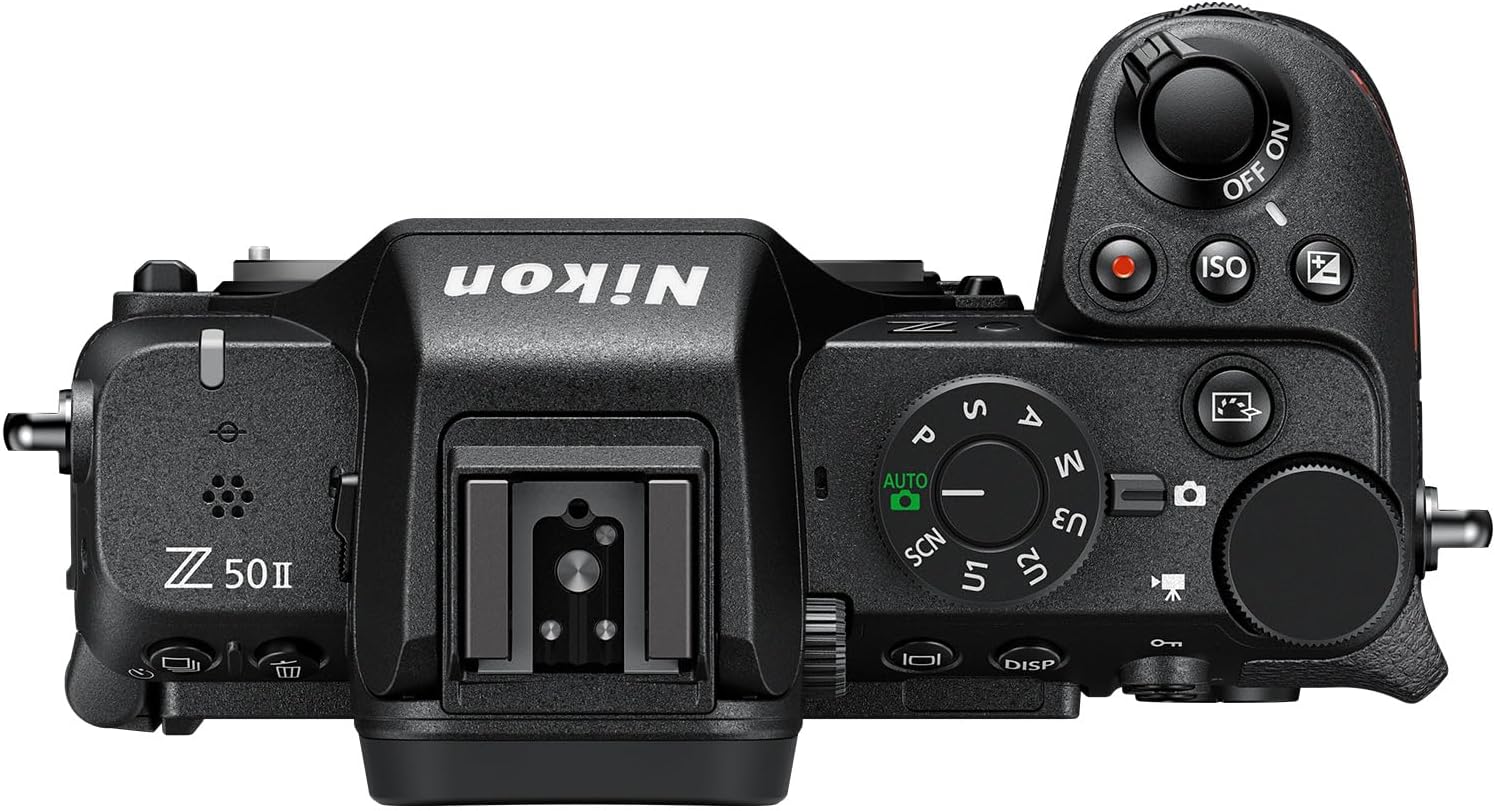
Beyond the rename, firmware version 1.10 adds four smaller options. First, Save focus position gains a setting called On saving user settings. It stores your focus point when you assign a configuration to the U1, U2, or U3 slots on the mode dial. Photographers who switch between saved setups will notice the difference right away.
Second, an Automatic monitor display switch joins the Setup Menu, and it governs how the screen and viewfinder trade off. Third, Wi-Fi Always ON appears under smart-device connection, which keeps the link ready instead of dropping it. Finally, FTP users get an Inactive connection timeout, useful for studio and tethered work. None of these options change image quality, yet each one trims friction from daily shooting.
Firmware 1.10 vs the Launch Firmware
Compared to the launch firmware, version 1.10 reads as an evolution rather than an overhaul. Stills shooters gain little beyond cleaner menu names and the focus-position tweak. Video shooters, by contrast, gain a real creative tool through shutter-priority aperture control.
How does the Z50II sit against its siblings after this update? The Nikon Z30 skips a viewfinder and targets pure vloggers, while the Z50II adds an EVF and a built-in flash. Both bodies share the same DX sensor size. If you record video in shifting light, the new aperture control makes the Z50II the stronger pick within Nikon’s DX lineup.
How to Install the Nikon Z50II Firmware Update
You have two ways to apply the Nikon Z50II firmware update. The fastest route uses the SnapBridge app over Bluetooth and Wi-Fi. Open SnapBridge, choose the firmware option, then follow the prompts. Because the file downloads to your phone first, keep the app open until the transfer finishes.
The second route uses an SD card. Download firmware version 1.10 from the official Nikon download page. Copy the file to a formatted card, then insert it and select Firmware version in the Setup Menu. Before you begin, charge the battery above 60 percent. Never power off during the write, since an interrupted update corrupts the camera. Afterward, confirm the screen reads 1.10.
Final Thoughts
Should you install the Nikon Z50II firmware update? If you shoot video in S mode, yes, and soon. Manual aperture control removes a real limitation and costs nothing. Hybrid creators gain the most immediate benefit from this release.
Stills-only owners face less urgency. The menu renames and focus-position option help, yet they will not transform your workflow. Still, updating keeps your camera current and smooths future cloud downloads. For a wider look at where this body sits, browse our guide to the best Nikon cameras of 2026.
One caution applies to any firmware. Wait a week or two if you depend on the camera for paid work, so community reports surface any edge cases first. For most owners, though, version 1.10 is a safe, worthwhile update. Back up your settings, charge the battery, and take the ten minutes.
Frequently Asked Questions
What does the Nikon Z50II firmware 1.10 update do?
Version 1.10 adds manual aperture control in shutter-priority video, renames Cloud Picture Control to Imaging Recipe, and adds several Setup and Network menu options. It also keeps HDMI output steady when recording ends.
How do I install firmware on the Nikon Z50II?
You install it through the SnapBridge app or with an SD card. For the card method, download the file from Nikon, copy it to a formatted card, then choose Firmware version in the Setup Menu. Charge the battery first.
What is an Imaging Recipe on the Z50II?
An Imaging Recipe is Nikon’s renamed Cloud Picture Control. It bundles a color preset with suggested settings, and you download it from Nikon Imaging Cloud straight to your camera.
Does firmware 1.10 add manual aperture in video?
Yes. In shutter-priority mode, you now set aperture by hand while the camera holds your shutter speed. Before this update, the Z50II chose aperture and ISO on its own during S mode video.
Is the Nikon Z50II firmware 1.10 update worth it?
For video shooters, yes. The shutter-priority aperture control is a meaningful creative gain. Stills-only owners get minor menu improvements, so the update is helpful but less urgent.
How do I check which firmware my Z50II runs?
Open the Setup Menu and select Firmware version. The screen shows your current number. After a successful update, it reads 1.10.

